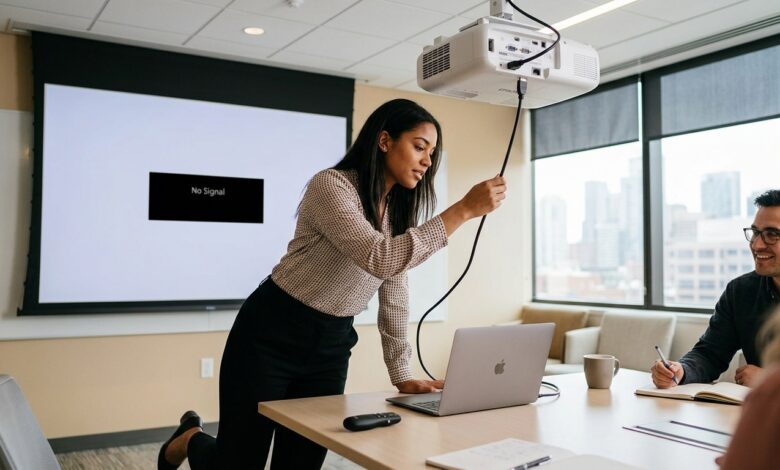
Whether you’re giving a business presentation, watching movies on a larger screen, teaching a class, or gaming with friends, knowing how to connect a projector to a laptop is an essential skill. Fortunately, most modern laptops and projectors can be connected in just a few minutes using the right cable or a wireless connection.
This guide explains every method, common troubleshooting tips, and answers frequently asked questions to help you get your projector working quickly.
What You’ll Need
Before you begin, gather the following:
- A laptop
- A projector
- A power source for both devices
- A compatible video cable or wireless connection
Common connection types include:
- HDMI
- USB-C
- DisplayPort
- Mini DisplayPort
- VGA (older devices)
- Wireless screen mirroring
Method 1: Connect a Projector Using an HDMI Cable
HDMI is the easiest and most common way to connect a projector to a laptop.
Step 1: Turn Off Both Devices
Power off both the laptop and projector before connecting the cable.
Step 2: Connect the HDMI Cable
Insert one end of the HDMI cable into your laptop.
Connect the other end to the HDMI port on the projector.
Step 3: Turn On the Projector
Power on the projector first.
Wait until it finishes starting.
Step 4: Turn On Your Laptop
Start your laptop.
Most operating systems automatically detect the projector.
Step 5: Select the Correct Input
Using the projector remote or onboard buttons, choose the HDMI input that matches the port you connected.
After a few seconds, your laptop screen should appear.
Method 2: Connect Using USB-C
Many newer laptops only include USB-C ports.
If your projector has HDMI, you’ll need:
- A USB-C to HDMI adapter
- Or a USB-C to HDMI cable
Simply connect the adapter, plug in the HDMI cable, and select the correct input source on the projector.
Method 3: Connect Using VGA
Older projectors and laptops may use VGA.
Steps
- Connect the VGA cable.
- Tighten the connector screws.
- Connect a separate audio cable if needed, as VGA carries video only.
- Turn on both devices.
- Select the VGA input on the projector.
Method 4: Connect Wirelessly
Many modern projectors support wireless connections.
Depending on the projector model, you may use:
- Wi-Fi
- Miracast
- AirPlay
- Chromecast
- Manufacturer-specific apps
General Steps
- Connect both devices to the same Wi-Fi network.
- Enable wireless display on the projector.
- Open your laptop’s display settings.
- Choose Connect to a Wireless Display (or the equivalent option).
- Select your projector.
- Confirm the connection if prompted.
Wireless connections reduce cable clutter but may introduce slight latency.
How to Change Display Mode
After connecting the projector, you can choose how the display behaves.
Windows
Press:
Windows + P
Then choose one of these options:
| Option | Description |
|---|---|
| PC Screen Only | Displays only on the laptop |
| Duplicate | Shows the same image on both screens |
| Extend | Uses the projector as a second display |
| Second Screen Only | Displays only on the projector |
macOS
- Open System Settings.
- Select Displays.
- Choose your projector.
- Enable or disable Mirror Displays depending on your preference.
Adjust the Projector Resolution
For the clearest image:
- Open your laptop’s display settings.
- Select the projector.
- Choose the recommended resolution.
Using the projector’s native resolution generally provides the sharpest picture.
No Picture? Try These Fixes
If nothing appears on the screen:
Check the Cable
Ensure the cable is fully inserted into both devices.
Try another HDMI cable if available.
Verify the Input Source
Many projectors have multiple HDMI or VGA ports.
Select the correct input using the remote.
Restart Both Devices
Power off the laptop and projector.
Reconnect the cable.
Turn on the projector first, then the laptop.
Update Graphics Drivers
Outdated graphics drivers can prevent external displays from working properly.
Install the latest drivers from your laptop manufacturer’s support website.
Try Another Port
If your laptop has multiple display ports, test a different one.
No Sound From the Projector
If video works but audio doesn’t:
Windows
- Right-click the speaker icon.
- Open Sound Settings.
- Choose the projector or HDMI device as the output.
macOS
- Open System Settings.
- Select Sound.
- Choose the projector under output devices.
Remember that VGA connections require a separate audio cable.
Best Cables for Projectors
| Cable Type | Video | Audio | Best For |
|---|---|---|---|
| HDMI | Yes | Yes | Most modern devices |
| USB-C to HDMI | Yes | Yes | New laptops |
| DisplayPort | Yes | Yes | High-resolution displays |
| Mini DisplayPort | Yes | Yes | Older laptops |
| VGA | Yes | No | Legacy equipment |
Tips for the Best Viewing Experience
- Place the projector on a stable surface.
- Dim room lighting for a brighter image.
- Clean the projector lens regularly.
- Use the projector’s native resolution.
- Adjust focus and keystone correction.
- Keep ventilation openings unobstructed.
Common Problems and Solutions
| Problem | Possible Solution |
|---|---|
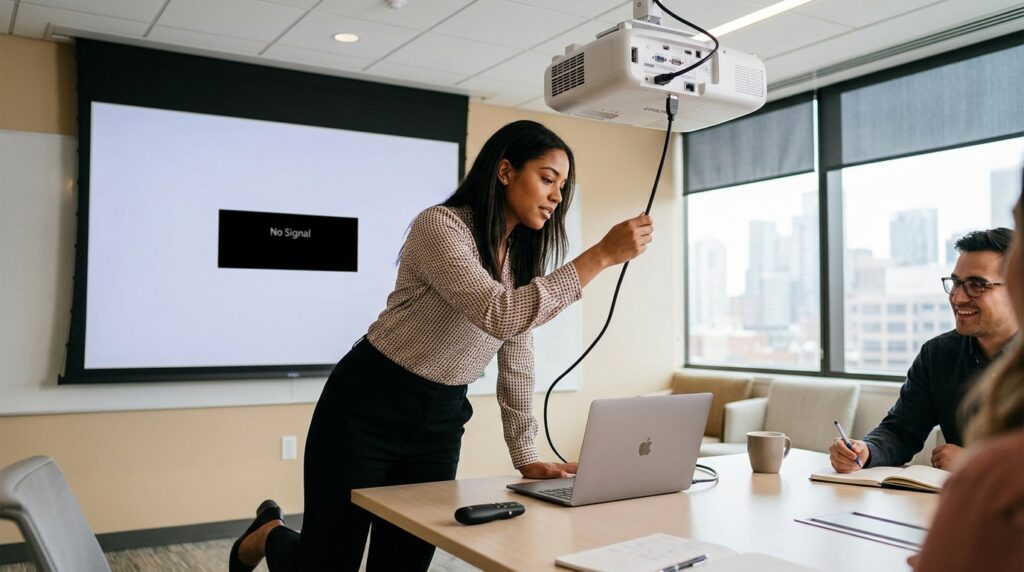
| No signal | Check cable and input source |
| Blurry image | Adjust focus and resolution |
| Image doesn’t fill the screen | Change aspect ratio or display resolution |
| No sound | Select the projector as the audio output |
| Screen flickers | Replace the cable or lower the resolution |
| Wireless lag | Move closer to the Wi-Fi router or use a wired connection |
Frequently Asked Questions
Why won’t my laptop detect my projector?
Possible causes include a loose cable, incorrect input selection, outdated graphics drivers, or incompatible display settings. Restart both devices and check all connections.
Can I connect a projector without HDMI?
Yes. You can use USB-C, DisplayPort, Mini DisplayPort, VGA, or a wireless connection, depending on the ports supported by your laptop and projector.
How do I duplicate my laptop screen?
On Windows, press Windows + P and select Duplicate.
On macOS, enable Mirror Displays in the display settings.
Can I use Bluetooth to connect a projector?
Bluetooth is typically used for audio or accessories rather than video. Most wireless video connections use Wi-Fi technologies such as Miracast, AirPlay, or Chromecast.
Why is there no sound through HDMI?
Check your audio output settings and make sure the projector or HDMI device is selected as the playback device.
What is the easiest way to connect a projector to a laptop?
For most users, an HDMI cable is the simplest and most reliable option because it carries both video and audio through a single cable.
Final Thoughts
Learning how to connect a projector to a laptop is straightforward once you know which connection method your devices support. HDMI remains the easiest and most dependable choice, while USB-C adapters and wireless screen mirroring offer flexible alternatives for newer laptops.
If you run into problems, check the cable connections, verify the projector’s input source, adjust your display settings, and ensure your graphics drivers are up to date. With the proper setup, you’ll be ready to enjoy presentations, movies, games, or classes on the big screen in just a few minutes.