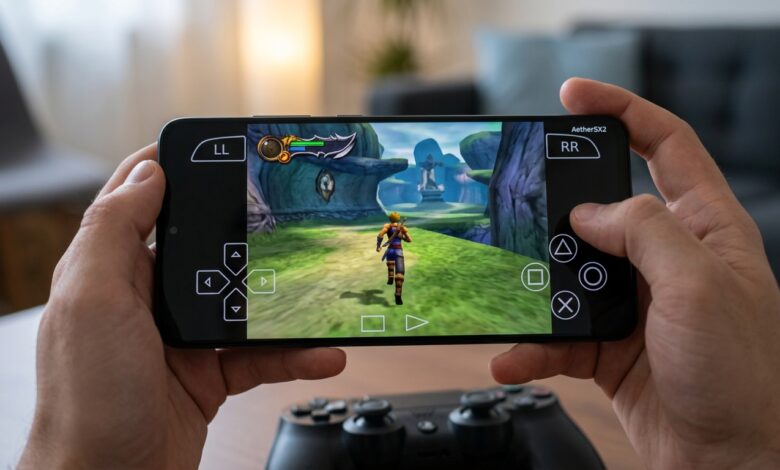
Playing PlayStation 2 games on Android has become easier thanks to powerful emulators like AetherSX2. However, before you can start gaming, you’ll need a PS2 BIOS file. Many beginners search for BIOS PS2 Android AetherSX2 to understand what it is, why it’s required, and how to set it up correctly. This guide explains everything you need to know while following legal and safe practices.
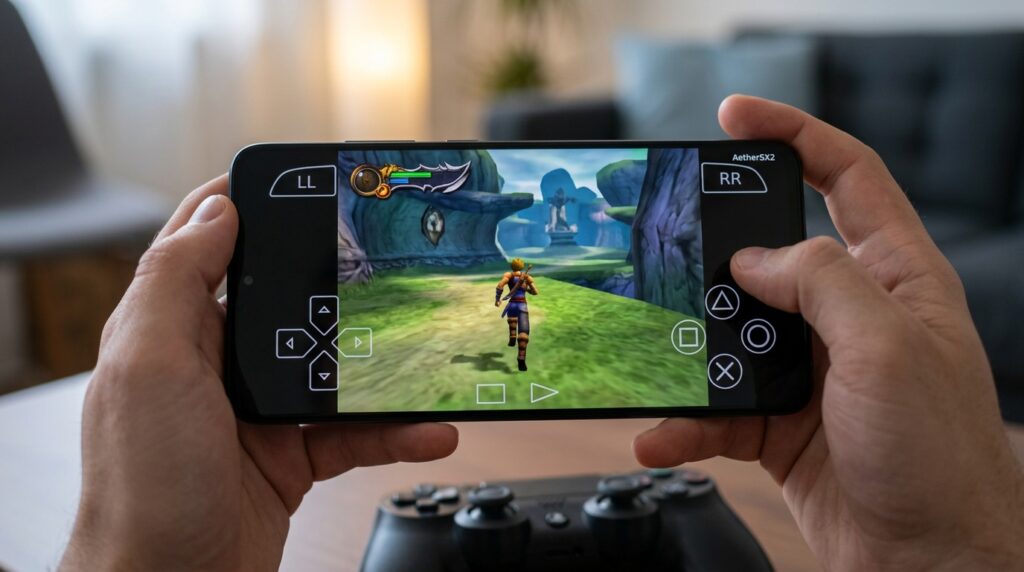
What Is a PS2 BIOS?
The PlayStation 2 BIOS (Basic Input/Output System) is the firmware that initializes the PS2 hardware and allows games to run. Just like the original PlayStation 2 console, AetherSX2 requires a BIOS file to emulate the system accurately.
Without a valid BIOS, the emulator cannot boot PS2 games.
What Is AetherSX2?
AetherSX2 is a PlayStation 2 emulator designed for Android devices. It uses advanced emulation techniques to run many PS2 games with improved graphics, customizable controls, and performance enhancements.
Some of its key features include:
- High-definition rendering
- Save states
- External controller support
- Multiple graphics settings
- Upscaling options
- Per-game configuration
- Touchscreen controls
- Vulkan and OpenGL graphics support
Performance depends on your Android device’s processor and GPU.
Why Does AetherSX2 Need a BIOS?
Unlike some older console emulators, PS2 emulation requires the original console firmware to accurately reproduce the hardware environment.
The BIOS is responsible for:
- Initializing the virtual console
- Loading game discs
- Managing memory cards
- Running system menus
- Ensuring game compatibility
Without it, AetherSX2 cannot function properly.
Is Downloading a PS2 BIOS Legal?
A PS2 BIOS is copyrighted firmware owned by Sony.
The generally accepted legal approach is to dump the BIOS from a PlayStation 2 console that you personally own. Downloading BIOS files from unofficial websites may violate copyright laws in your country.
If you want to use AetherSX2 legally, use a BIOS extracted from your own hardware.
How to Set Up BIOS in AetherSX2
After obtaining your own BIOS legally, follow these steps:
1. Install AetherSX2
Download and install the latest version of AetherSX2 from a trusted source.
2. Prepare Your BIOS File
Copy your legally dumped BIOS file to your Android device.
Many users create a folder such as:
Internal Storage/
└── PS2/
    └── BIOS/
3. Launch the Emulator
Open AetherSX2 for the first time.
4. Import the BIOS
Choose the option to import or select a BIOS file.
Browse to the folder where your BIOS is stored.
5. Add Your Games
Import legally owned PS2 game backups in supported formats such as:
- ISO
- CHD
- CSO (if supported)
Your games should now appear in the library.
Recommended Device Specifications
For smooth gameplay, your Android device should have:
- Android 8.0 or newer
- Snapdragon 845 processor or better
- At least 6 GB RAM
- Vulkan-compatible GPU
- Sufficient storage for games
More powerful hardware generally provides better performance.
Best Graphics Settings
For improved gameplay, consider these settings:
- Vulkan Renderer (if supported)
- Native or 2× Internal Resolution
- Enable Multithreaded VU
- Hardware Download Mode: Disabled (unless needed)
- Texture Filtering: Bilinear
- Enable Frame Limiter
- Automatic Game Fixes
You may need to adjust settings for demanding games.
Compatible PS2 Game Formats
AetherSX2 supports several image formats, including:
- ISO
- CHD
- BIN (for supported titles)
- Compressed images (depending on emulator version)
CHD files are popular because they save storage space without sacrificing quality.
Common Setup Issues
BIOS Not Detected
Possible causes:
- Corrupted BIOS file
- Unsupported BIOS version
- Incorrect file location
Re-import the BIOS and verify that it was dumped correctly.
Slow Performance
Improve speed by:
- Lowering internal resolution
- Using Vulkan instead of OpenGL
- Closing background apps
- Enabling performance mode
- Reducing graphics enhancements
Game Crashes
Some titles require specific emulator settings.
Try:
- Switching graphics renderer
- Updating the emulator
- Using recommended game settings
- Verifying your game image
Tips for Better Gaming
To get the best experience:
- Use a Bluetooth controller
- Keep your device cool during long sessions
- Store games on fast internal storage
- Update your emulator regularly
- Use save states alongside in-game saves
- Experiment with graphics settings for each game
Frequently Asked Questions
Can AetherSX2 run every PS2 game?
No. While many games are playable, compatibility varies depending on the title and your device’s hardware.
Do I need a BIOS for every game?
No. A single compatible BIOS can be used for all supported PS2 games.
Can I use touch controls?
Yes. AetherSX2 includes customizable on-screen controls, and it also supports external gamepads.
Which renderer is better?
For most modern Android devices, Vulkan generally offers better performance, though OpenGL may work better for certain games.
Conclusion
Setting up a BIOS PS2 Android AetherSX2 correctly is the first step toward enjoying PlayStation 2 games on your Android device. By using a BIOS legally dumped from your own PS2 console, configuring the emulator properly, and optimizing graphics settings, you can enjoy smooth and reliable emulation. With a capable Android device and the right setup, AetherSX2 delivers one of the best PS2 gaming experiences available on mobile while respecting software licensing requirements.